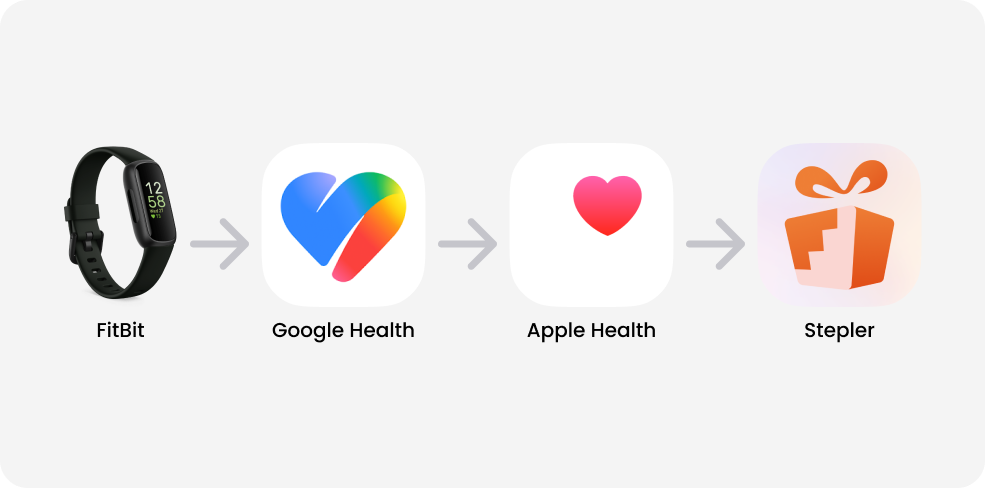
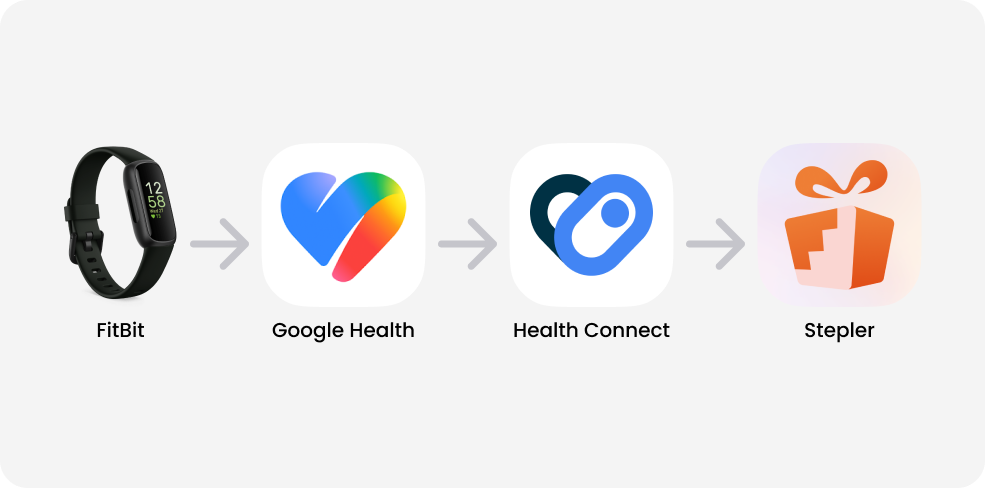
Action required: Google is changing how Fitbit data can be shared with other apps. As a result, Stepler’s current Fitbit connection will stop working on October 30, 2026.
To keep syncing your Fitbit steps with Stepler, you’ll need to update your connection before October 30. Follow the instructions below for iPhone or Android.
iPhone 1. Update your apps Open the App Store . Update Google Health Update Stepler 2. Sync your Fitbit Keep your Fitbit near your iPhone. Open Google Health . Check that your latest steps appear. If they don’t, pull down on the Today screen to sync. 3. Connect Google Health to Apple Health In Google Health , tap Connections at the top left. Tap Apps and services . Select Apple Health . Follow the setup prompts. Allow Google Health to write Steps to Apple Health. 4. Connect Apple Health to Stepler Open Stepler . Tap your Profile picture , then Account , then Step Source . Or tap here if you are on your phone: Step Source Settings Select Apple Health . Allow Stepler to read Steps . 5. Check your connection Open Apple Health . Check that your Fitbit steps appear under Steps . Open Stepler and give your steps time to update. You’ll need iOS 16.4 or later.
Android 1. Update your apps Open Google Play . Update Google Health Update Stepler 2. Sync your Fitbit Keep your Fitbit near your Android phone. Open Google Health . Check that your latest steps appear. If they don’t, pull down on the Today screen to sync. 3. Find or install Health Connect Android 14 or later: Open your phone’s Settings . Search for Health Connect . Open it. Android 9–13: Open Google Play . Search for Health Connect by Google. Install it and follow the setup prompts. 4. Connect Google Health to Health Connect Open Google Health . Tap Connections at the top left. Tap Partner apps . Select Sync your favorite health apps . Follow the setup prompts. Allow Google Health to write Steps to Health Connect. 5. Connect Health Connect to Stepler Open Stepler . Tap your Profile picture , then Account , then Step Source . Or tap here if you are on your phone: Step Source Settings Select Health Connect . Allow Stepler to read Steps . 6. Check your connection Open Health Connect . Check that it contains step data from Google Health . Open Stepler and give your steps time to update.
Steps still missing? Check Google Health. Make sure your latest Fitbit steps appear there.Check step-sharing permissions. Google Health must be allowed to write steps to Apple Health or Health Connect.Check Stepler’s permissions. Stepler must be allowed to read steps from your selected step source.Reopen Stepler. Give the apps time to sync.Contact Stepler Support