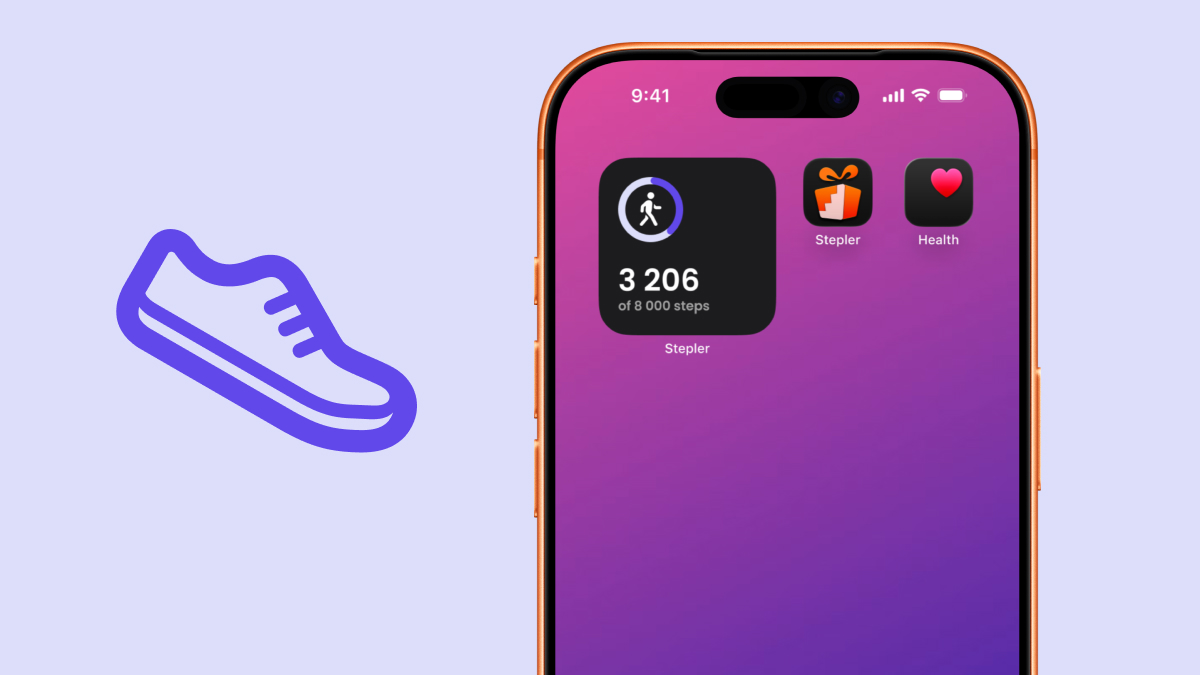
Your steps deserve a spot on your screen. Add the Stepler Step Widget to keep an eye on your daily steps without opening the app.
Follow the steps below to get set up in no time.
iOS
Add to your Home Screen
- From the Home Screen, press and hold an empty area until the apps jiggle.
- Tap Edit / Paintbrush in the upper-left corner.
- Tap Add Widget.
- Find and select Stepler.
- Swipe to the Step Widget and choose the size you like, then tap Add Widget.
- Place the widget wherever you like, then tap Done / Checkmark.
Add to your Lock Screen
- Unlock your iPhone, then press and hold the Lock Screen.
- Tap Customize, then select Lock Screen.
- Tap Add Widgets below the clock.
- Find and select Stepler.
- Tap or drag the step widget you’d like to add.
- Close the widget picker, then tap Done.
Android
Add from your Home Screen
- From the Home Screen, press and hold an empty area.
- Tap Widgets.
- Find and select Stepler.
- Press and hold the Step Widget, then drag it onto your Home Screen. On some phones, tap the widget, then tap Add.
- Place the widget wherever you like.
The steps may vary slightly depending on your phone.
Add from the Stepler app
- From the Stepler app, tap the Steps circle.
- Scroll to and tap the Widget Card.
- Tap Add.
- Got to your Home Screen to find the Step Widget added.